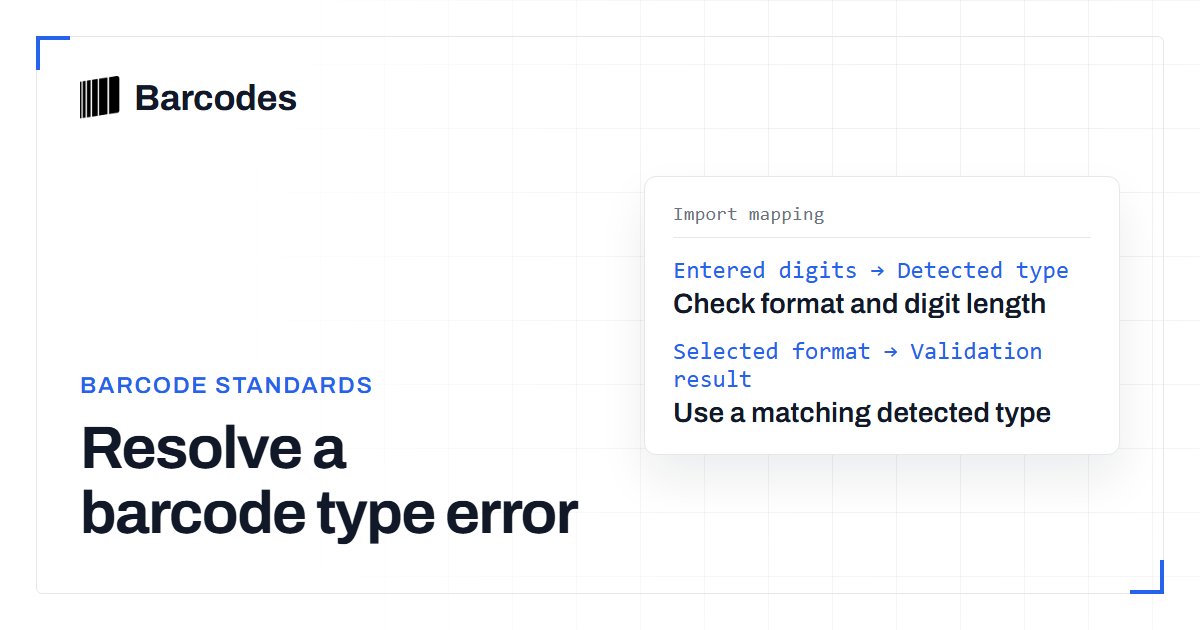
Why a barcode gets an “Invalid prefix/type combination” error
“Invalid prefix/type combination” means the digits passed the length and check-digit checks, but their detected type does not match the type you selected. First check the code’s actual format and the validator’s type setting; changing the final digit will not fix a type mismatch.
What the error means
The validator compares the type you request with the type its barcode rules detect. If those disagree, it returns “Invalid prefix/type combination.” The error is about format classification, not necessarily a bad number.
For example, the validation tool checks EAN-13 or GTIN-13 against allowed detected types “EAN” and “EAN Restricted.” It checks UPC-A or GTIN-12 against “UPC.” A number can have the expected length and a valid check digit, yet fail if its detected type is outside the selected type’s allowed set.
That distinction matters because changing the final digit only helps when the check digit is wrong. If the digits already pass that check, changing one can make a valid code invalid without fixing its type.
Check the selected type and detected type
Start by checking whether you used automatic detection or chose a type manually. In AUTO mode, the tool identifies a type from the code’s length and, for some lengths, its prefix. A 13-digit number is treated as ISBN-13 if it begins with 978 or 979; otherwise, the tool treats it as EAN-13.
When you choose a type manually, the validator applies that type’s own rules. A UPC-A selection expects 12 digits. An EAN-13 selection expects 13. A mismatch between the entered number and selected format can produce a type error even if the digits look familiar.
Read the detected type in the result before editing the number. If the validator reports a different type from the one you intended, check the original label or barcode specification and select the matching format. The barcode validation guide explains how length, format and check-digit checks differ.
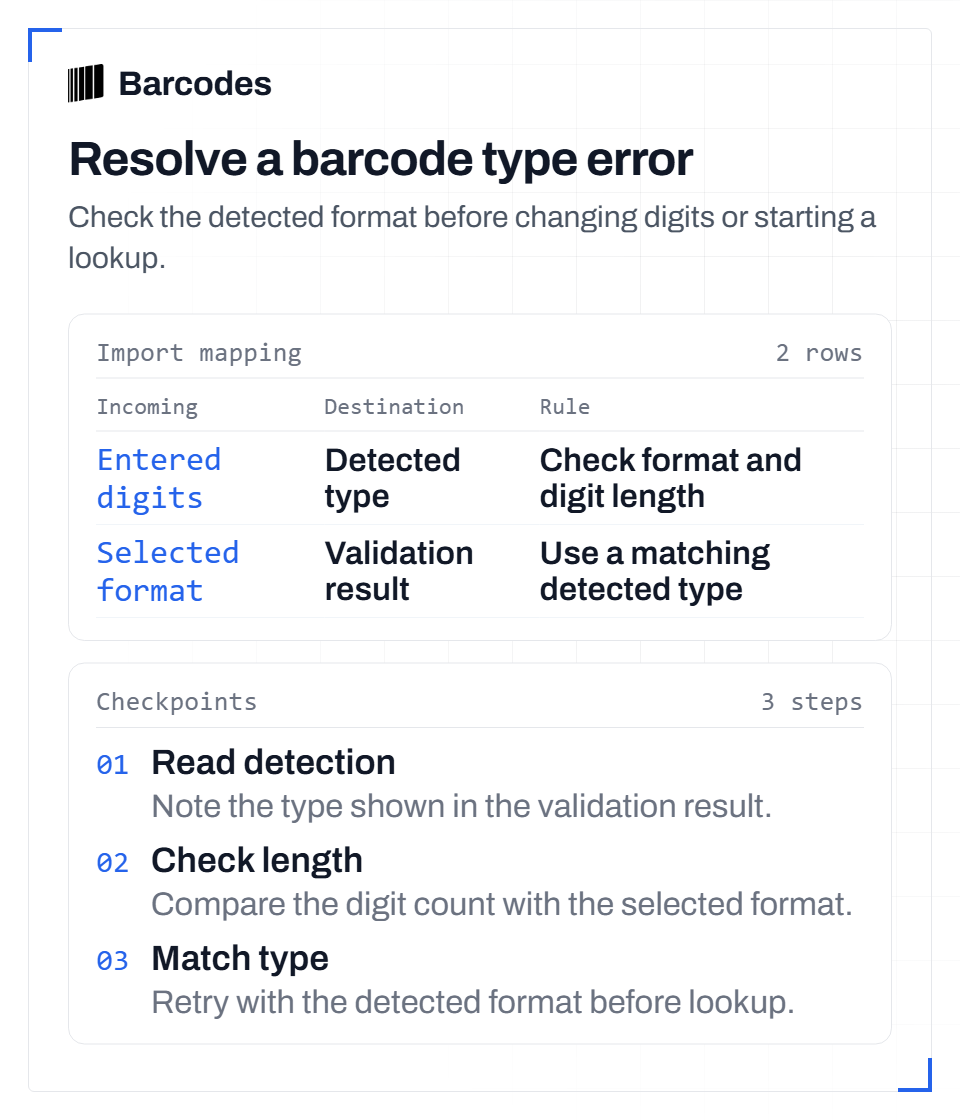
- Read the detected type
- Check the digit length
- Retry with matching type
Text version
Resolve a barcode type error Check the detected format before changing digits or starting a lookup. Section: Check the selected type and detected type Step 1: Read detection. Note the type shown in the validation result. Step 2: Check length. Compare the digit count with the selected format. Step 3: Match type. Retry with the detected format before lookup. Import mappings: Entered digits to Detected type: Check format and digit length; Selected format to Validation result: Use a matching detected type
Understand restricted prefixes
Some ranges are restricted for particular uses, so a prefix can affect the validator’s classification. The tool supports an “EAN Restricted” detected type alongside “EAN” for EAN-13 or GTIN-13. A restricted classification is not, by itself, proof that the check digit is wrong.
The validator’s code allows both detected types for EAN-13 and GTIN-13. For UPC-A and GTIN-12, it allows “UPC.” If the selected type and detected type still do not align, review whether you chose the correct format and whether the code was copied accurately.
Do not interpret a valid check digit as confirmation that a code is suitable for every use. The validation tool checks structure and format; the result does not establish registration, ownership, product identity or acceptance by a sales channel.
Run these checks before lookup
Remove spaces and hyphens before you retry. The tool strips those characters and converts input to uppercase, but it rejects other characters. Then count the digits and compare that length with the type you selected.
Next, use automatic detection if you are unsure of the format. If you select a type manually, make sure it matches the code’s documented format. Only investigate the final check digit after length and type agree.
You can use the [barcode validation tool](/tools/barcode-validation-tool) to see the detected type and any validation reason. Once the input passes structural validation, a product lookup is a separate check: a valid barcode can still have no matching product record.
- Confirm the digit count matches the selected type.
- Use the detected type to identify a manual selection mismatch.
- Check for unsupported characters or a copying error.
- Treat check-digit validation and product lookup as separate results.
Frequently asked questions
Does this error mean the barcode check digit is wrong?
Not necessarily. The validation tool reports a bad check digit separately. “Invalid prefix/type combination” means the detected type does not fit the selected format’s allowed types.
Can a restricted EAN still pass validation?
The validator allows both “EAN” and “EAN Restricted” as detected types for EAN-13 or GTIN-13. A restricted classification is not the same as a failed check digit or proof that the code is accepted for every use.
Try the tools
Related reading
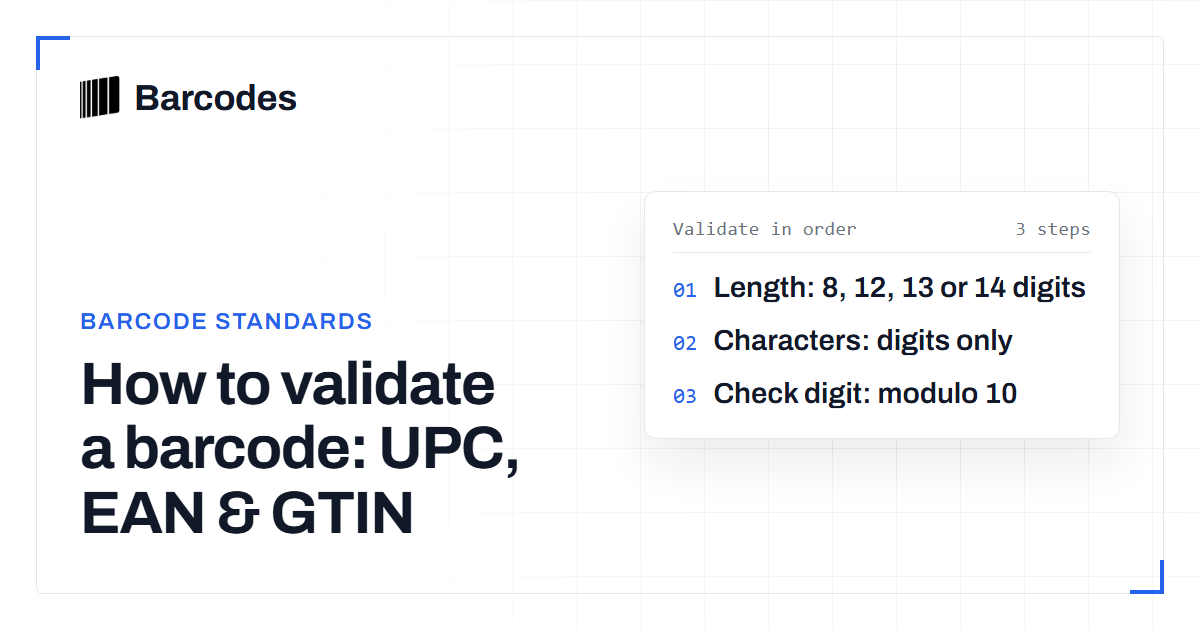
How to validate a barcode: UPC, EAN & GTIN
A practical guide to checking that a UPC, EAN, or GTIN is well formed before you trust it.
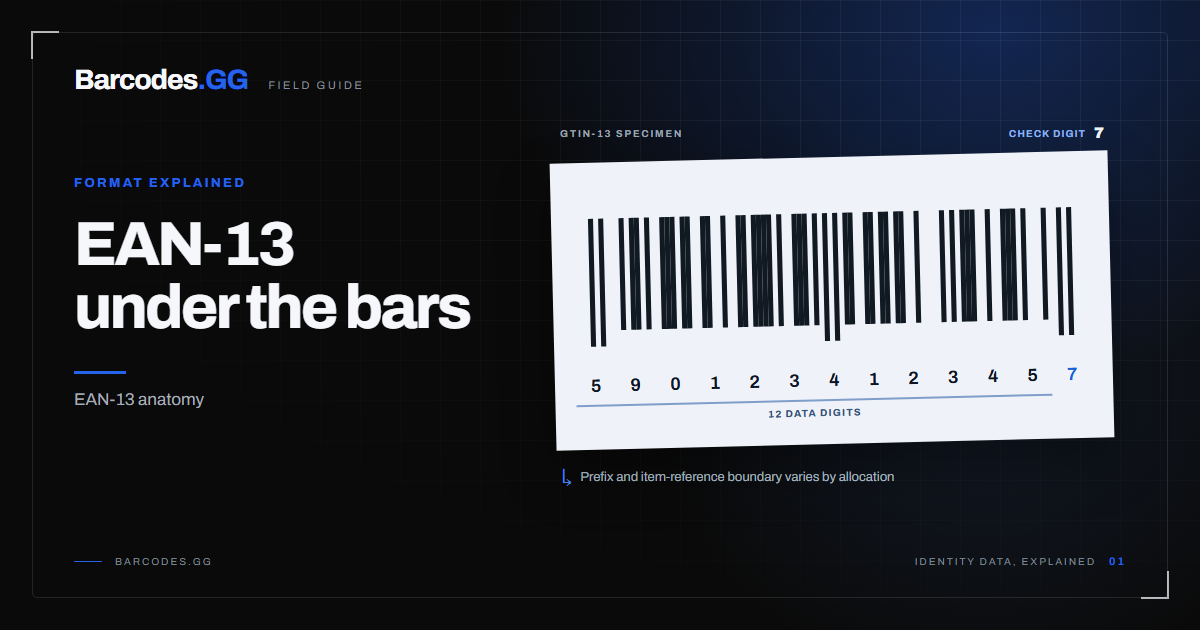
EAN-13 format explained: structure & prefixes
An EAN-13 barcode is a 13-digit GTIN-13 built from a GS1 prefix, a company prefix, an item reference and a check digit.
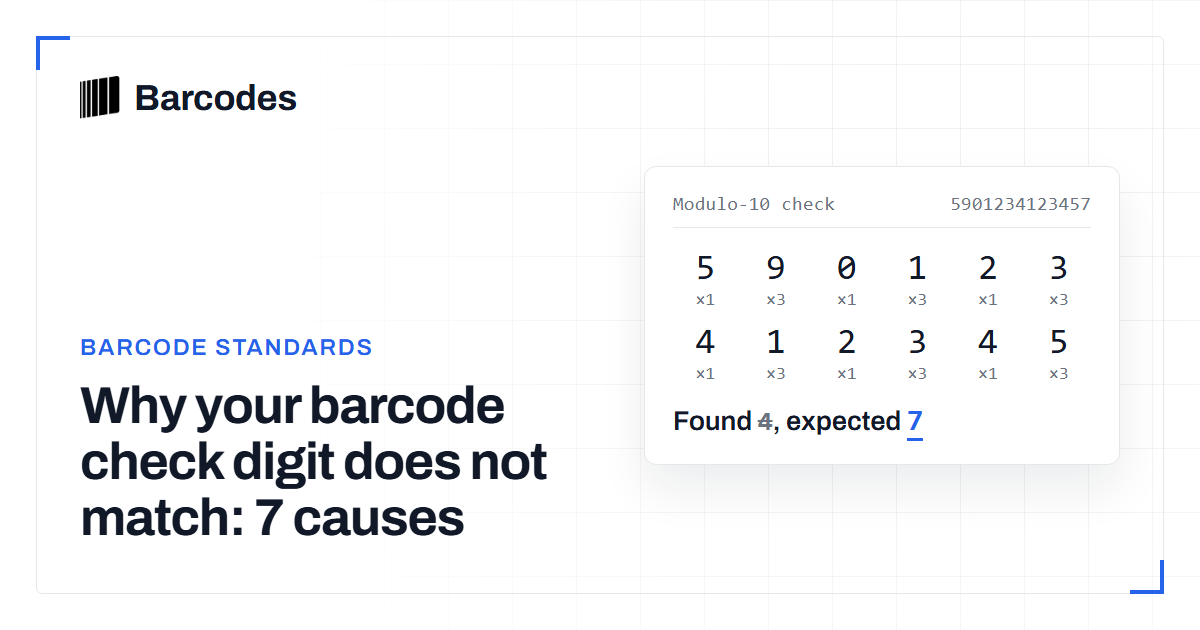
Why your barcode check digit does not match: 7 causes
The seven reasons a UPC or EAN check digit fails validation, and how to fix each one.